
Precious - AI Photo Studio
Curious Creators Co.Parenting
4.7139.00 Reviews
- Version
- 1.1.10
- Installs
- 500.00K
- Age Rating
- Everyone
Screenshots
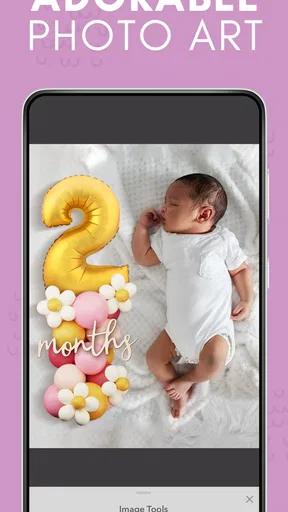
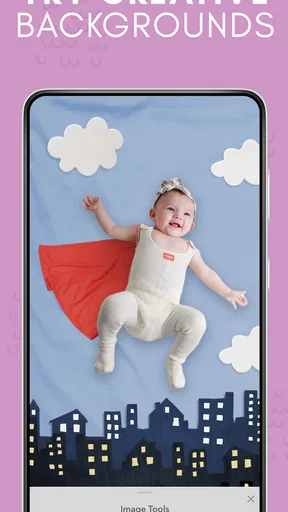
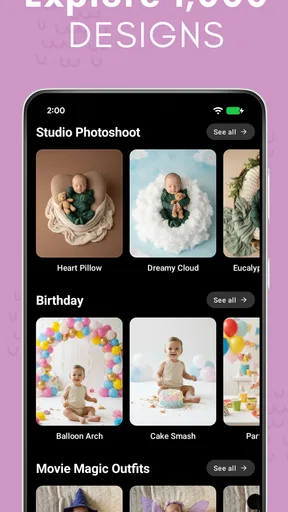
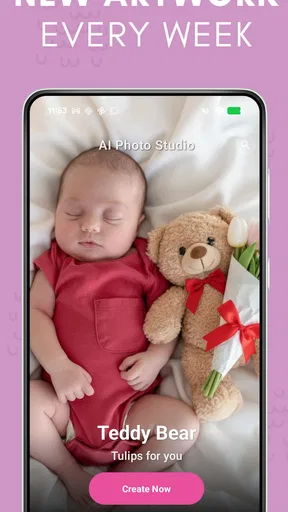
Our Review of Precious - AI Photo Studio
 Analysis by Appyee
Baby photos usually begin as a messy collection of moments: a sleepy expression captured before breakfast, a first attempt at sitting upright, or a picture taken quickly while one hand is holding a bottle. Precious - AI Photo Studio is designed for turning those ordinary snapshots into keepsakes that feel more deliberate. I approached it as a parenting app rather than a general photo editor, asking a simple question: can it make milestone photos easier to preserve without turning the process into another demanding project?
My answer is mostly yes. The app has a clear emotional purpose, and its focus makes sense for parents who want attractive baby memories without learning a complicated editing program. At the same time, the experience is not magic in every situation. The quality of the starting photo still matters, and an AI-based result can feel less personal than something created manually. That balance is important before you decide whether this free app belongs in your family-photo routine.
From an ordinary baby snapshot to a keepsake
I look at the first step as choosing a photo whose meaning is already clear, rather than expecting an edit to supply the story. A quick check for a visible face, a distinct expression, and enough space around the baby can save time and make the next creative choices feel more deliberate. From there, I consider how the keepsake will be shared or saved.
The starting point: a busy parent and an imperfect photo
The strongest use case is not a carefully staged portrait. It is the photo you already have. Imagine your baby has just reached a small but meaningful milestone, and you manage to take one clear picture in the middle of a busy day. The lighting is plain, the background includes a blanket or part of the living room, and there is no time to arrange props. Precious gives that image a more celebratory direction, which is exactly where a focused parenting editor can be more useful than a broad camera app.
I like this starting point because it matches real family life. Parents often have hundreds of pictures but very few finished keepsakes. The obstacle is rarely a lack of memories; it is the effort required to sort, edit, caption, and organize them. A tool centered on milestones reduces the number of creative decisions you have to make. You can begin with the moment itself instead of wondering which general-purpose filter or template might fit.
The app is published by Curious Creators Co. and sits in the parenting category, so its identity is easy to understand. It is not trying to replace a full photo editor, a family album, or a cloud backup service. Its role is narrower: help you make baby milestone images feel special. That narrow purpose is a genuine advantage when you want a quick result, but it also means people looking for extensive manual control may find the experience limited.
Choosing the right source image
My first practical tip is to choose the source photo before opening the editing process with a specific outcome in mind. For a milestone keepsake, a clear face and an obvious subject are more valuable than a technically perfect background. A picture with the baby partly hidden, strong motion blur, or several people competing for attention gives an automated editor less to work with.
I would also keep the original file untouched. Treat the edited version as a new copy rather than the only version of the memory. That simple habit matters because a stylized result may look wonderful on a phone but not suit every future use. The unedited image remains the reliable record, while the Precious version becomes the shareable or printable interpretation.
Another useful workflow is to prepare a small group of candidate images instead of repeatedly experimenting with one weak photo. Compare them for expression, visibility, and room around the subject. A photo with a little empty space can be more flexible for a keepsake layout than a close crop, even if the close-up initially feels more emotional.
Working through the creation flow
The central appeal is the movement from a normal baby photo toward a magical presentation. I found the concept easy to grasp: start with a milestone moment, guide it toward a keepsake style, and save the result for later. This is less intimidating than opening a professional editor filled with unfamiliar tools, panels, and technical choices.
That simplicity is especially helpful for someone editing one-handed during a short quiet period. You do not need to plan a complete family archive before using the app. A single photo can be treated as a finished little project. For grandparents, a private family group, or a monthly memory folder, that lower effort can be more important than having every possible adjustment.
Still, I would not expect every image to produce the same emotional effect. AI styling can emphasize the subject, but it cannot recreate the exact feeling of the moment. If the original photo is meaningful because of a particular expression, hand position, or small detail in the room, check that the transformation still respects what made it special. A polished image is not automatically a better memory.
Making the milestone feel intentional
The best results come when the image has a clear story. Instead of treating the app as a way to decorate random photos, I would use it around moments such as a first smile, a new movement, or a family celebration. The finished image then has a reason to exist, rather than becoming another attractive file that disappears into the camera roll.
A helpful habit is to decide where the result will go before creating it. If it is meant for a family message, a simple composition may be enough. If you are collecting milestone images over time, consistency becomes more valuable: use similar source-photo framing and keep the wording or visual mood restrained. Even without building a formal album inside the app, this approach makes separate creations feel connected when you view them together later.
I also recommend resisting the urge to edit every picture from the same day. Select one image that represents the milestone best. This keeps the process meaningful and prevents the app from becoming a repetitive chore. The point is not to manufacture a polished version of every moment; it is to give a few important moments a lasting form.
Handoffs: from the app to the people who matter
A keepsake is only useful if it survives the handoff from editor to family life. After creating an image, I would review it at normal phone size before sharing it. Look at the baby’s face, the edges of the subject, and any details that might have been altered in a way you do not like. A quick inspection is worthwhile because the excitement of finishing can make small visual problems easy to miss.
The next handoff is organizational. Save the result somewhere you will recognize later, using a simple naming habit based on the milestone rather than a vague label. If you create several images in a short period, this makes it much easier to find the right one when a relative asks for a particular memory or when you want to assemble a year-end collection.
There is also a social handoff. A stylized baby image can be lovely to share, but not every relative wants an edited version instead of the original. When the moment is especially important, I would send both: the keepsake for presentation and the untouched photo for context. That gives family members the emotional polish without losing the ordinary details that often become precious later.
For parents who print photos, I would treat the first creation as a screen preview rather than assuming it will look identical on paper. Phone displays can make colors and contrast appear more dramatic. Check the saved result carefully and consider whether the composition still works at the intended size. Precious is most helpful as the creative step; the final physical presentation may still require your own judgment.
What the finished result does well
When the source image is strong, the result can bridge the gap between a casual snapshot and a presentable memory. That is the app’s clearest strength. It gives parents a way to mark a milestone without buying decorative supplies, arranging a photo session, or spending an evening learning editing software.
I particularly appreciate the emotional accessibility. You do not have to be a photographer to understand what the app is for, and you do not have to wait for a perfectly planned occasion. A small everyday achievement can receive the same sense of attention as a larger celebration. That makes the app suitable for families who want to document growth as it happens, not only on birthdays or holidays.
The audience response suggests that this focused approach is connecting with people: the app has a 4.7 average from around 52 thousand ratings, with over 100 thousand installs. I see those figures as a sign of broad interest rather than a guarantee that every family will love every generated image. Personal taste matters greatly here, especially when comparing natural photography with a more magical or designed look.
Precious is free to start, which lowers the barrier for trying the workflow with a photo that is not especially important. There are optional purchases ranging from $4.99 to $39.99 per item, so I would explore the basic experience first and decide whether the finished style earns a place in your regular routine before spending money. The right question is not whether a premium result looks attractive in isolation, but whether you will actually use it for enough milestones to justify the purchase.
Where the workflow breaks down
The first weak point is input quality. No keepsake tool can fully rescue a photo where the baby is out of focus, poorly visible, or lost in a crowded scene. If your family takes mostly quick low-light pictures, you may see inconsistent results and feel that the app is being blamed for a problem that began with the camera.
The second issue is personal control. A parent who wants to adjust every color, crop, layer, and decorative element may prefer a traditional editor. Manual tools take longer, but they also let you preserve tiny details exactly as you remember them. Precious is a better match for guided creativity than for someone who already enjoys building designs from scratch.
AI styling can also introduce a subtle emotional distance. A generated image may look polished while losing the awkwardness that made the original feel real. I would be cautious about using the most dramatic treatment on a photo where the background, clothing, or expression carries important context. Sometimes the best keepsake is a lightly improved image that still feels unmistakably like that day.
There is a practical cost to creating too many versions. Because the app makes celebration easy, it can encourage overproduction: multiple treatments of the same milestone, repeated attempts to find the perfect look, and a growing collection that needs sorting. Set a small rule for yourself, such as choosing one final version per moment. That keeps the app serving your memories instead of creating another digital backlog.
Who should use it, and who should choose something else
I would recommend Precious to parents who want quick, attractive milestone keepsakes and do not want to become photo-editing experts. It is also a good fit for relatives who help manage family memories and want a simple way to turn a selected baby photo into something ready to share. The Everyone content rating makes it broadly accessible as a family-oriented app, while the minimum requirement of Android 8.0 or later covers many compatible devices.
The app is less suitable for professional newborn photographers, scrapbookers who need precise layout control, or families building a large archival system. Those users may be better served by a dedicated photo editor combined with a carefully organized album service. A conventional editor is also preferable when preserving the original appearance is more important than adding a magical presentation.
I would skip it if your main goal is backup, synchronization, or long-term family storage. Creating a keepsake and protecting the underlying photo are different jobs. Precious can be part of a sensible workflow, but I would still maintain your normal backup habits and avoid treating a single edited output as the complete record.
Everyday fit and long-term value
In daily use, the app works best as a small ritual. After a milestone happens, choose one image, create a keepsake, inspect it, and file it with the original. That sequence is short enough to repeat without turning memory-keeping into a major weekend task. The handoff to grandparents or a family chat then becomes the final part of the process rather than an afterthought.
The current release is version 1.1.3, and the app was released on February 24, 2026. I would judge it by the workflow it offers today: focused, approachable, and aimed at emotional presentation rather than deep editing. Its recent identity also makes it sensible to keep expectations practical and assess each result yourself instead of assuming a particular style will suit every photo.
My overall view is positive, with one important condition: use it selectively. The best result comes from pairing Precious with a meaningful original photo, not from asking it to manufacture meaning from an ordinary image. If you want a low-effort way to give a handful of baby milestones a little more presence, this app is easy to recommend. If you need exact control, archival tools, or a natural photographic finish above all else, a traditional editor will be the better companion.
For me, the app succeeds because it understands the real problem many parents have: not taking photos, but doing something with the good ones. It turns a rushed snapshot into a possible keepsake and gives a busy family a reason to pause over a small achievement. Just preserve the original, review the result before sharing, and spend only when the finished style genuinely adds something to the memory.
Privacy and Permissions
See what permissions an app requests and how it handles your data.
- Photos/Media/Files
- read the contents of your USB storage, modify or delete the contents of your USB storage
- Storage
- read the contents of your USB storage, modify or delete the contents of your USB storage
- Other
- view network connections, full network access, control vibration, prevent device from sleeping, Google Play license check
Verdict
Strengths of Precious - AI Photo Studio
- Creates polished AI portraits with minimal editing effort.
- Offers multiple creative styles for profile and social media photos.
- Simple interface makes it accessible to beginners.
- Can refresh old or low-quality photos with new visual treatments.
- Useful for testing different looks before a professional photo session.
Limitations of Precious - AI Photo Studio
- Results may vary noticeably depending on the quality of the source photo.
- Some styles can produce unnatural facial details or inconsistent features.
- Best tools and effects may require a subscription or extra credits.
- AI processing can take time, especially during busy periods.
- Uploading personal photos raises privacy concerns for some users.
Similar Picks in This Category
View All
Family Space
Motorola Mobility LLC.3.9

شرطة الأطفال - مكالمة وهمية
Oub Apps4.1

Findmykids: Parental Control
LETEM LTD4.6

Pregnancy + | Tracker App
Philips Electronics UK Limited4.8

Policía de niños - para padres
Kids police4.7

Pregnancy App
Amila4.9
Frequently Asked Questions
What is Precious - AI Photo Studio used for?
Precious - AI Photo Studio is designed to enhance and transform photos with artificial intelligence. It can help improve image quality, apply creative effects, retouch portraits, and produce stylized results from ordinary pictures. The exact tools may vary by version, but the app is mainly aimed at users who want quick, automated editing without needing advanced photography or design skills.
Is Precious - AI Photo Studio free to download and use?
The application may be available as a free download, but some editing tools, AI effects, export options, or premium styles can require a subscription or one-time purchase. Before starting a trial, check the pricing page carefully, including the renewal terms. A free installation does not necessarily mean that every feature is available without payment.
Does Precious - AI Photo Studio require an internet connection?
Many AI photo applications process images through online servers, so Precious - AI Photo Studio may require an active internet connection for certain effects, image generation, or enhancement features. Basic functions could work differently depending on the version and device. If you plan to edit photos while traveling or using mobile data, review the app’s permissions and connection requirements first.
Are photos uploaded to Precious - AI Photo Studio private and secure?
You should review the app’s privacy policy before uploading personal, family, or sensitive images. AI processing may involve transferring photos to remote servers, and the policy should explain how images are stored, processed, retained, or deleted. Avoid uploading confidential content unless you understand the data practices and are comfortable with the permissions requested by the application.
What devices are compatible with Precious - AI Photo Studio?
Compatibility depends on the operating system, device model, available storage, and the app version offered in the Google Play Store or Apple App Store. AI editing can also use considerable memory and processing power, meaning older phones may experience slower results, crashes, or limited features. Check the store listing for the required Android or iOS version before downloading.
